How to Search
The materials curated for Herbarium Histories are from historical collections which would require extensive research in order to be fully and completely catalogued. It is important to remember that all collections are incomplete, and most collections have only incomplete information attached to them. Herbarium Histories is no exception to this rule. Although we have strived to enhance and augment existent information related to the materials curated for this portal, in many cases information is still missing. This makes for a balancing act when designing a search engine: we want people to be able to find what is there, rather than to feel frustrated by what is not there.
As you can read in our page on Our Data Model, the plants, letters, manuscripts and publications in Herbarium Histories have all been catalogued originally within different museum and archive conventions. Thanks to the way that the portal's infrastructure of Omeka S is constructed, we have been able to design and build the search functions for Herbarium Histories alongside our design and construction of our data model. This means that you should be able to find things of interest to you even if you are not a specialist. Below you will find helpful tips for finding what you need.
Search using the main menu bar options
Free Text Search in the main menu bar: Searches all the data that we have compiled or created for every one of the items that are held on the portal. It does not search within the images of the items or perform any optical character recognition of pdfs of publications.

Search Colonial Contexts in the main menu bar: Opens up a sub-menu listing the five main geo-temporal zones that our materials represent and to which they relate.

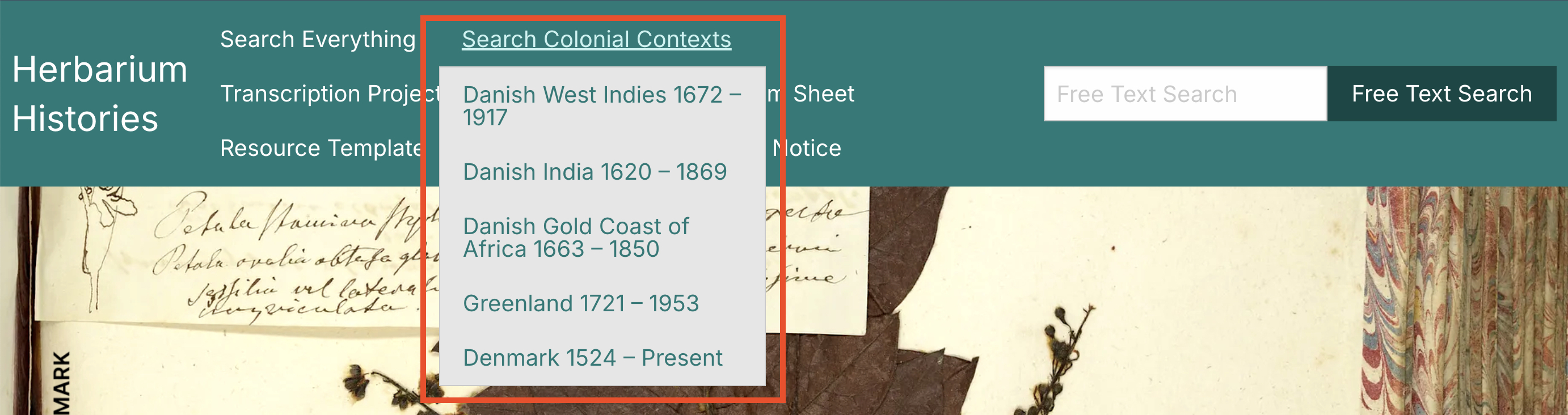
Each of these five options opens out a curated selection of materials relating specifically to the relevant geo-political and temporal colonial context:
- Danish West Indies (1672-1917)
- Danish India (1620-1869)
- Danish Gold Cast of Africa (1663-1850)
- Greenland (1721-1953)
- Denmark (1524-Present)
Please note that the Herbarium Histories portal contains materials from approximately 1750-1940, and the dates given here as selectable options for each of the Danish colonial geotemporal zones are for the wider (generally agreed) start and end dates of active colonisation of each of the territories. Denmark is given as a selectable option because it was the colonising state, and is therefore part of the colonisation process.
Search Everything in the main menu bar:

Opens up a new page with a number of simple options.
Search using the Search Everything page
The dedicated Search Everything page starts with a Free Text Search box. Below that there are options to search People, Places or Plants. On the third row of search options you can choose a Date Range – From and To.
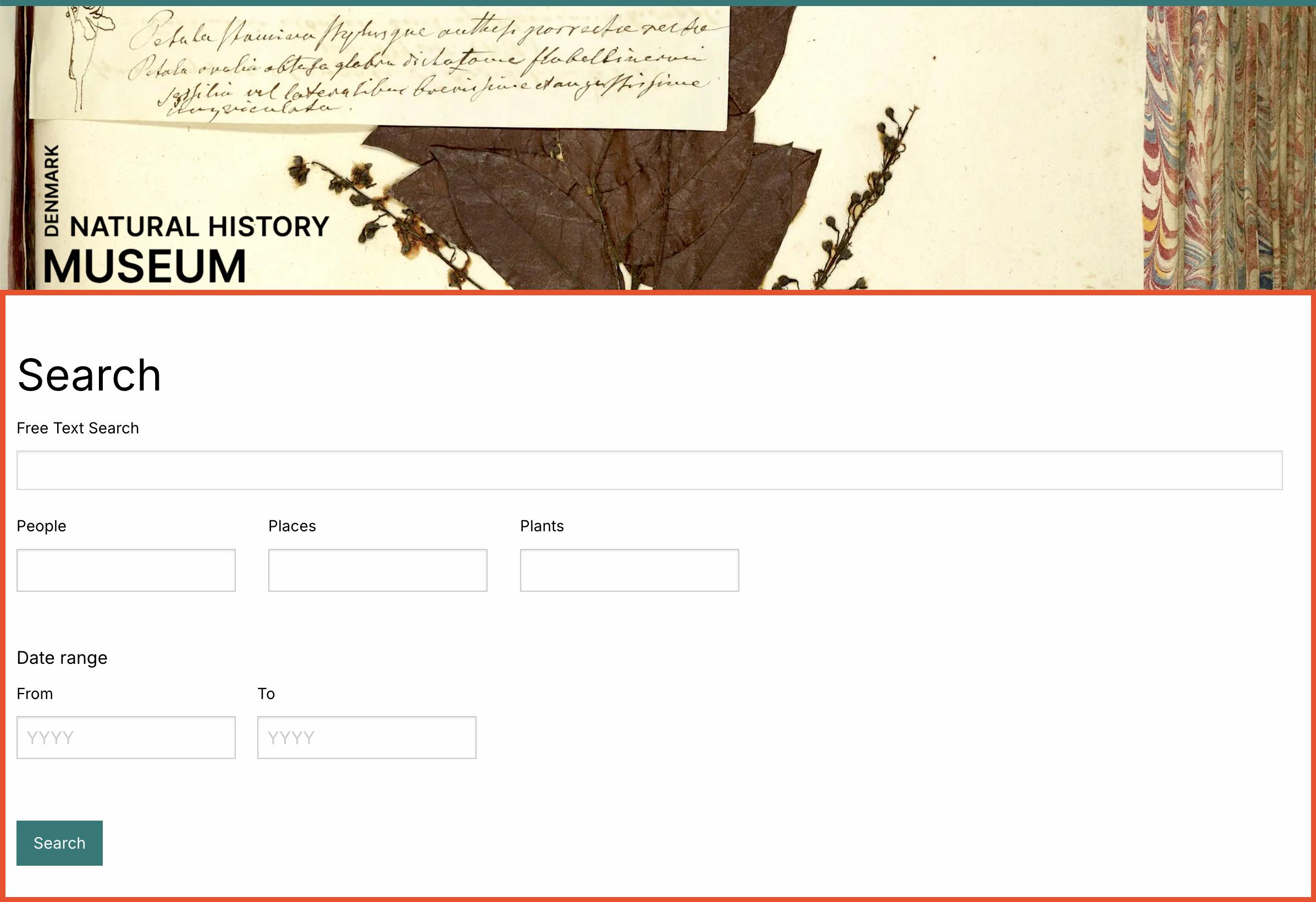
You can use a single search field or any combination of the search fields that you think will assist you in discovering the materials of interest to you.
Your search results
Your search results will display on the same page with the Search Everything options, appearing below the search fields. They will be displayed showing the search terms that you have typed into the search fields that you have chosen:
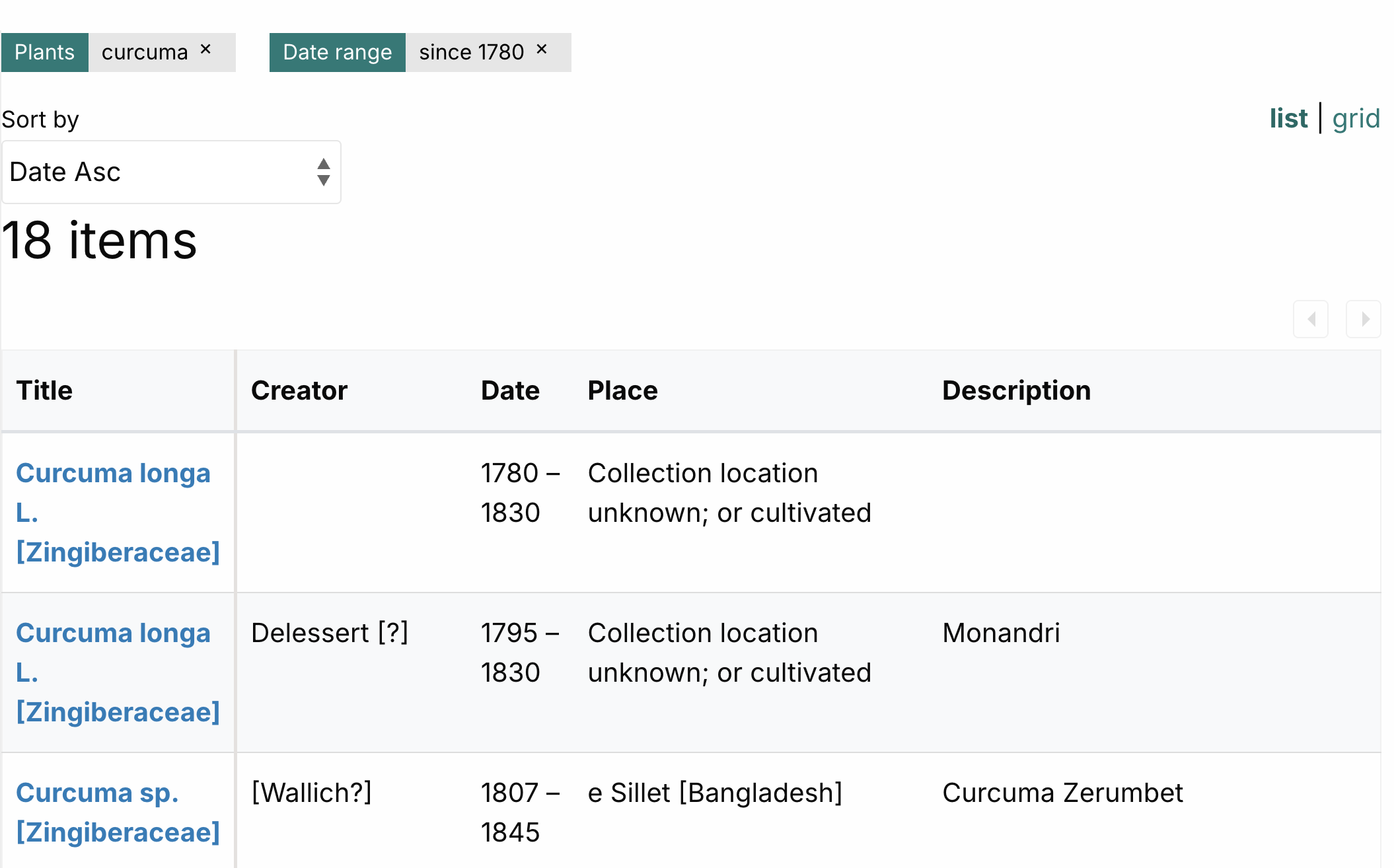
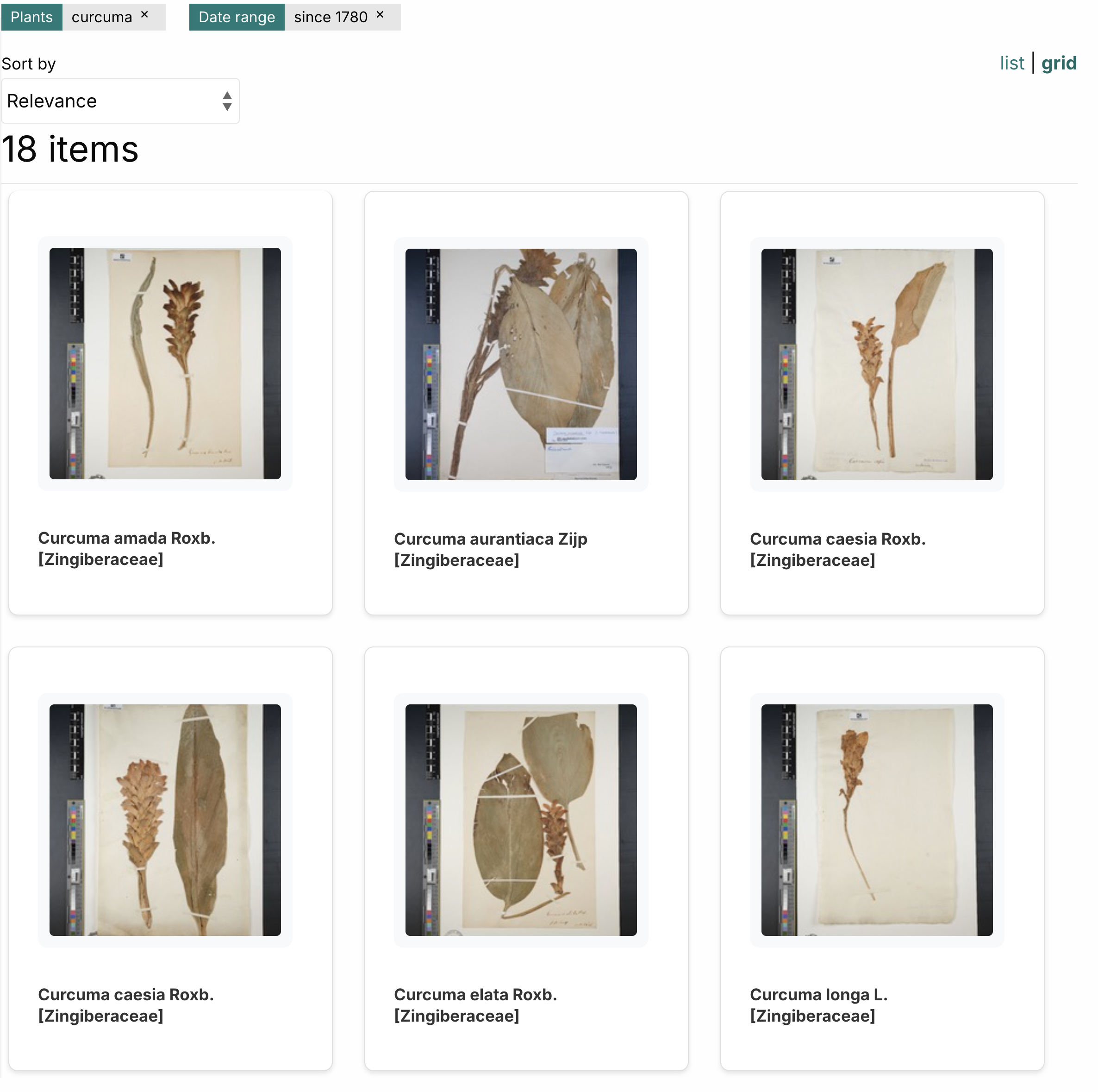
You can de-select your search terms by clicking on the 'x' in the displayed search terms, thereby widening your results. You can view your results as a list (as seen above) or as an image grid (as seen below):
Filter your search results using Facets
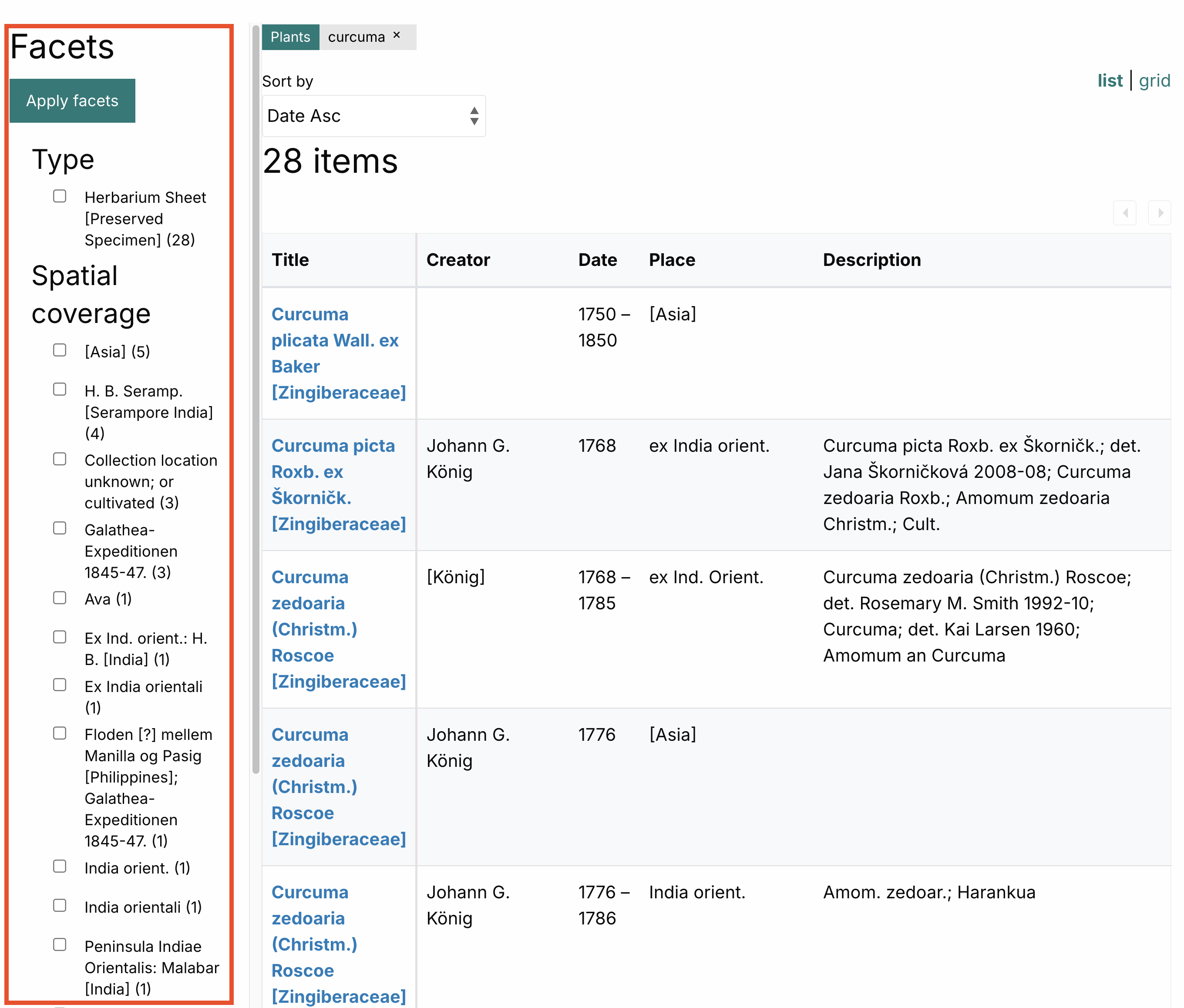
On all search result pages across the portal, whether via Free Text Search, Colonial Contexts Search, or Search Everything, you have a set of filtering options on the left hand side of the page. These filters are dynamic and will present you with options that can be found within the search results that you have already requested: this offers you 'search within search' functionality. Select a filter of interest and click Apply Facets.
Sort your results
You can sort your search results by Creator (people), Place, or Date.
For more information about each of the different data fields, please consult the 'Our Data Model' page.